

Use media when it helps readers understand something faster than text alone.

Photo by Nico Knaack on Unsplash
Images
Basic image syntax
Use standard Markdown image syntax for simple images.
Add a visible caption
Use the Image component when you want a caption below the image. Add the caption as children between the opening and closing tags.
Photo by Nico Knaack.
The title prop is not a visible caption. Use it only when you want the browser tooltip/title attribute.
Use dark mode images
Set src to an object when the image should change between light and dark mode.

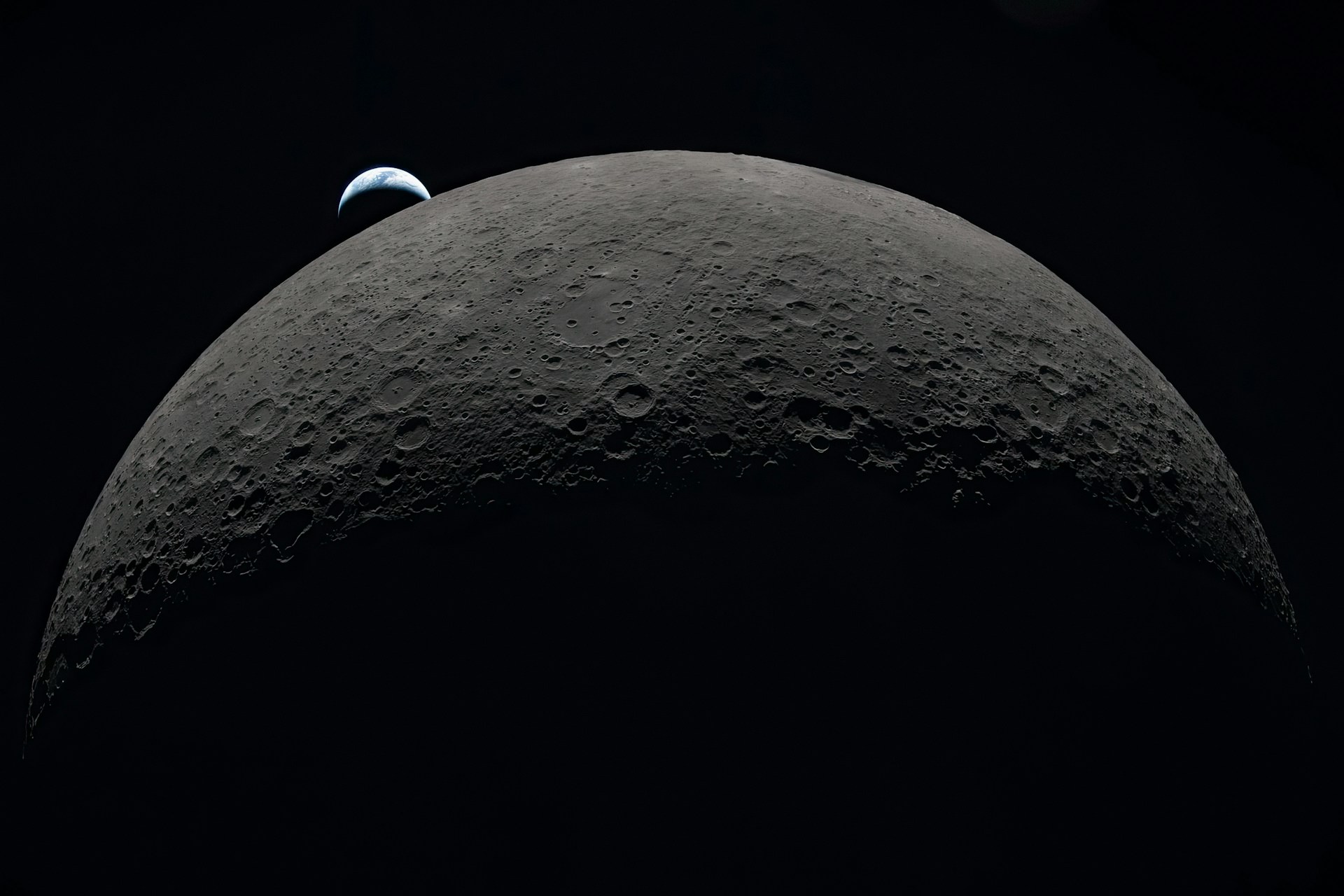
This image uses a different source in dark mode.
Light mode photo by Marek Piwnicki on Unsplash.
Constrain image size
Use the width prop on the Image component to set a max rendered width in pixels. This helps keep large portrait or landscape images from filling the full content width.

A constrained image can sit comfortably inside a wider page.
Align a constrained image
Use align="left", align="center", or align="right" when an image is
narrower than the content column. The default is center.
Disable click-to-zoom
Set zoom={false} using the Image component when you want the image to stay static and avoid opening the zoom overlay.
This image does not open the zoom overlay.
Videos
Embed a video file
Use the HTML <video> tag when you have a hosted .mp4 file.
Embed a YouTube video
Use an iframe for YouTube or other hosted video platforms.